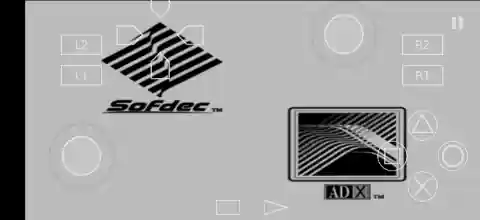

If you want to play PlayStation 2 games on your Android device, NetherSX2 Turnip is one of the best PS2 emulators available today. It is a modified version of AetherSX2 that removes ads, improves compatibility, and adds several useful fixes for a smoother gaming experience. Whether you want to play God of War 2, GTA San Andreas, Resident Evil 4, Shadow of the Colossus, or other PS2 classics, NetherSX2 provides excellent performance on most modern Android devices.
In this guide, you can learn about NetherSX2 APK, BIOS setup, Classic vs Patch versions, installation steps, best settings, and frequently asked questions.
What is NetherSX2?
NetherSX2 Classic Turnip is a community-maintained PS2 emulator based on AetherSX2. It offers improved stability, better compatibility, and removes unnecessary limitations found in some older builds.
The emulator supports:
- PS2 ISO and CSO game files
- Save states
- External controllers
- High-resolution rendering
- Widescreen patches
- Cheat codes
- Custom graphics settings
With the right settings, many PlayStation 2 games can run at full speed on Android devices.
NetherSX2 Classic vs Patch Version
Before downloading, it is important to understand the difference between the available versions.
NetherSX2 Classic
The Classic version is based on the older AetherSX2 3668 build. Many users prefer it because it performs better on low-end devices and some Mali GPU phones.
Pros:
- Better performance on older devices
- Stable gameplay in many PS2 titles
- Lower hardware requirements
NetherSX2 Patch
The Patch version is based on newer AetherSX2 builds and includes additional compatibility fixes.
Pros:
- Better game compatibility
- Improved graphics rendering
- More bug fixes
- Recommended for modern Snapdragon devices
For most users, the Patch version is the recommended choice.
How to Install NetherSX2 APK
Follow these simple steps:
- Download the NetherSX2 APK.
- Enable Install Unknown Apps from Android settings.
- Install the APK file.
- Open NetherSX2.
- Grant storage permissions.
- Import your PS2 BIOS file.
- Add your PS2 ISO games.
- Start playing.
The setup process usually takes only a few minutes.
How to Add BIOS in NetherSX2
The BIOS file is required for PS2 emulation.
Steps:
- Launch NetherSX2.
- Open the BIOS setup screen.
- Tap Import BIOS.
- Select your BIOS file.
- Wait for verification.
- Restart the emulator if necessary.
Once the BIOS is detected, you can launch PS2 games without issues.
Best NetherSX2 Settings for Performance
If your games lag or experience frame drops, use these settings:
Performance Settings
- Graphics Renderer: Vulkan
- Hardware Download Mode: Disable Readbacks
- Blending Accuracy: Basic
- Texture Filtering: Bilinear
- Upscaling Multiplier: 1x or 2x
- VSync: Off
- Multi-Threaded VU1: Enabled
- Fast Boot: Enabled
These settings provide the best balance between speed and stability.
Best Graphics Settings
If your phone is powerful, you can improve visual quality.
Graphics Settings
- Renderer: Vulkan
- Resolution: 3x–5x Native
- Anisotropic Filtering: 16x
- Texture Filtering: Bilinear (PS2)
- Widescreen Patches: Enabled
- FXAA: Enabled
These settings make PS2 games look significantly sharper than on the original console.
How to Set Up Controls
NetherSX2 supports touch controls and external gamepads.
Touch Controls
- Open Controller Settings.
- Customize button layout.
- Adjust button size and opacity.
- Save the configuration.
External Controllers
You can connect:
- Xbox Controllers
- PlayStation Controllers
- Bluetooth Gamepads
- USB Controllers
Simply pair the controller and map buttons inside the emulator settings.
How to Enable Cheat Codes
NetherSX2 supports cheat codes for many PS2 games.
Steps to Enable Cheats
- Open your game.
- Access Game Properties.
- Navigate to the Cheats section.
- Add cheat files or codes.
- Enable the desired cheats.
- Restart the game.
Popular cheat options include infinite health, unlimited money, unlocked characters, and special abilities depending on the game.
Popular Games to Play on NetherSX2
Some of the best PS2 games for NetherSX2 include:
- God of War
- God of War 2
- GTA San Andreas
- GTA Vice City Stories
- Resident Evil 4
- Shadow of the Colossus
- Bully
- Black
- Tekken 5
- Dragon Ball Z Budokai Tenkaichi 3
Most of these titles run smoothly on mid-range and flagship Android devices.
Why Choose NetherSX2?
Compared to older PS2 emulators, NetherSX2 offers:
- Better performance
- Improved compatibility
- Active community support
- Enhanced graphics options
- Save states and controller support
- Smooth gameplay experience
It remains one of the best ways to enjoy PlayStation 2 games on Android.
FAQs
Yes, NetherSX2 is completely free to use.
Most users should choose the Patch version. Classic is better for some low-end devices.
Many users prefer NetherSX2 because it includes community fixes, removes ads, and continues development based on AetherSX2 builds.
Final Words
NetherSX2 is currently one of the best PS2 emulators for Android. Whether you choose the Classic version for better performance on older devices or the Patch version for improved compatibility, the emulator provides an excellent way to enjoy PlayStation 2 games on modern smartphones. Download the latest NetherSX2 APK and BIOS, configure the recommended settings, and start playing your favorite PS2 classics today.