
Download AetherSX2 APK and PS2 BIOS latest version for Android. Learn installation, best settings, cheat codes, controller setup, and graphics optimization tips.
If you’re looking for the best way to play PlayStation 2 games on Android, AetherSX2 is the emulator you need. It allows you to enjoy classic PS2 titles such as God of War 2, GTA San Andreas, Need for Speed Most Wanted, Resident Evil 4, Shadow of the Colossus, and hundreds of other games directly on your smartphone. With support for custom controls, cheat codes, save states, graphics enhancements, and external controllers, AetherSX2 delivers one of the best PS2 gaming experiences available on mobile devices.
What is AetherSX2?
AetherSX2 is a powerful PlayStation 2 emulator designed specifically for Android devices. It replicates PS2 hardware and software, allowing users to run PS2 ISO games with impressive performance and compatibility. Unlike older emulators, AetherSX2 supports modern Android processors and includes advanced features such as Vulkan rendering, graphics upscaling, widescreen patches, and customizable performance settings.
To start playing PS2 games, you’ll need both the AetherSX2 APK and a compatible PS2 BIOS file. Once configured, the emulator can run a huge library of PS2 games with smooth gameplay and enhanced visuals.
Key Features of AetherSX2
- Play PS2 ISO, BIN, and CHD game files
- High compatibility with thousands of PS2 games
- Vulkan and OpenGL graphics rendering
- Save states and memory card support
- Customizable touch controls
- External controller support
- Widescreen patches
- Graphics upscaling
- Cheat code support
- Fast-forward functionality
- Per-game performance settings
How to Install AetherSX2 APK and BIOS
Setting up AetherSX2 is simple:
- Install the latest AetherSX2 APK.
- Open the emulator and grant storage permissions.
- Import your PS2 BIOS file.
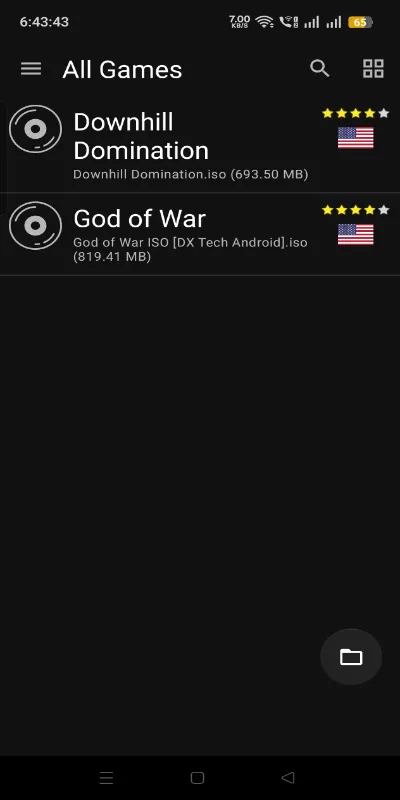
- Select the folder containing your PS2 games.
- Wait for the game library to scan.
- Tap any game to start playing.
After the initial setup, games can be launched directly from the emulator’s main menu.
Best AetherSX2 Settings for Most Games
For the best balance between graphics and performance, use the following settings:
System Settings
- EE Cycle Rate: 100%
- EE Cycle Skip: Normal
- Fast Boot: Enabled
- Multi-Threaded VU1: Enabled
Graphics Settings
- Renderer: Vulkan
- Internal Resolution: 2x or 3x
- Blending Accuracy: Basic
- Texture Filtering: Bilinear
- Hardware Download Mode: Disable Readbacks
- Threaded Presentation: Enabled
Audio Settings
- Audio Latency: Low
- Time Stretching: Enabled
These settings provide excellent performance for most devices while maintaining good visual quality.
How to Increase Graphics Quality
If your phone has a powerful Snapdragon processor, you can significantly improve visual quality.
Recommended settings:
- Internal Resolution: 4x to 6x
- Enable Widescreen Patches
- Enable Anisotropic Filtering
- Use Vulkan Renderer
- Enable Texture Preloading
- Enable High-Quality Filtering
These options make PS2 games look much sharper and cleaner than they originally appeared on the PlayStation 2 console.
How to Increase FPS and Performance
For low-end or mid-range devices, performance is usually more important than graphics.
Use these settings:
- Internal Resolution: 1x
- Renderer: Vulkan
- Blending Accuracy: Basic
- Disable Unnecessary Visual Effects
- Enable Multi-Threaded VU1
- Close Background Apps
- Enable Fast Boot
These adjustments can improve frame rates and reduce lag in demanding games.
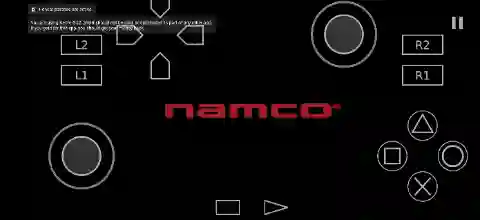
How to Set Up Controls
AetherSX2 provides fully customizable controls.
Touchscreen Controls
- Open Settings.
- Select Controller Settings.
- Tap Touchscreen Controller.
- Drag and resize buttons as desired.
- Save your layout.
You can create custom layouts for different games and screen sizes.
External Controllers
AetherSX2 supports:
- PS4 Controllers
- PS5 Controllers
- Xbox Controllers
- Bluetooth Gamepads
- USB Controllers
Simply connect your controller, open Controller Settings, and map each button to the corresponding PS2 control.
How to Activate Cheat Codes
Cheat codes can unlock hidden content, provide unlimited health, infinite money, and much more.
To enable cheats:
- Launch your game.
- Open the pause menu.
- Select Cheats.
- Add your cheat codes.
- Enable the desired cheats.
- Restart the game if necessary.
Many popular PS2 games have extensive cheat databases available online.
Additional Tips for Better Gameplay
- Use CHD format to save storage space.
- Keep your device cool during long gaming sessions.
- Enable Game Mode if your phone supports it.
- Avoid Battery Saver mode while gaming.
- Update your device software regularly.
- Use per-game settings for demanding titles.
Final Thoughts
AetherSX2 remains one of the best PlayStation 2 emulators available for Android. With proper BIOS setup, optimized settings, and correctly configured controls, you can enjoy hundreds of PS2 classics with impressive performance. Whether you want maximum graphics quality or the highest possible FPS, AetherSX2 offers enough customization to suit every type of Android device.
Frequently Asked Questions
No, there is currently no official AetherSX2 IPA available for iOS devices. AetherSX2 was developed specifically for Android.
Most PS2 games are playable, but performance depends on your device and the game’s compatibility.
At least 4GB RAM is recommended, while 6GB or more provides a better gaming experience.
ISO and CHD are the most commonly used formats, with CHD offering smaller file sizes without affecting gameplay.